Thanks!
If you liked this, we would love for you to share it with more people.



In today’s world, people expect apps and websites to just work - fast, smooth, and simple.
Slow pages? 404 errors?
Yeah, that’s a hard pass.
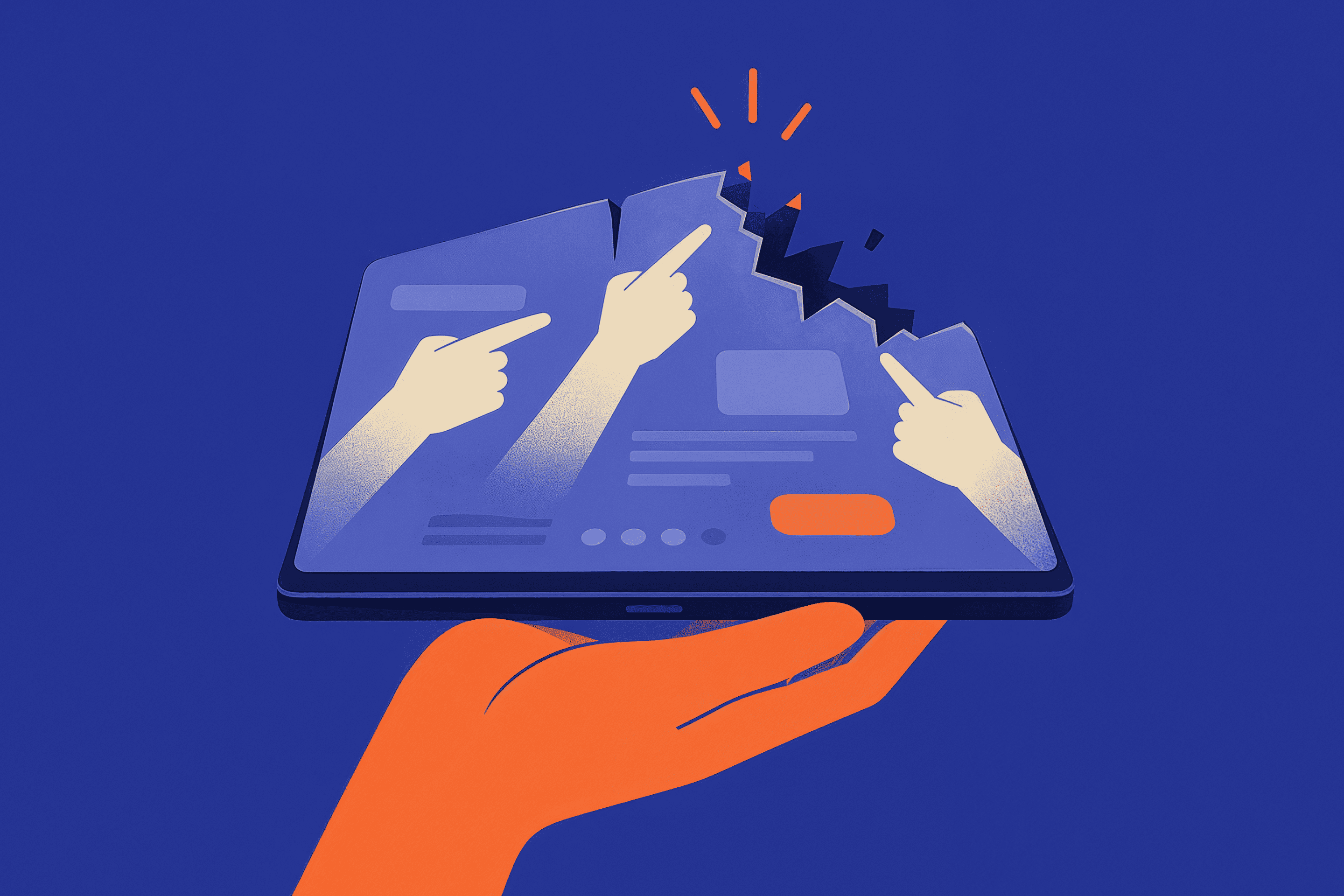
If your users are bouncing, it’s not always because your product isn’t good. Sometimes, it’s the experience that’s driving them away. In many cases, poor UX is costing you customers without you even realizing it.
Let’s take a closer look at what might be turning them off. Understanding how poor UX affects customer retention is key to identifying why users leave before converting.
These are some of the most common UX design mistakes that lose customers and reduce engagement.
Now that we’ve seen how bad UX/UI can drain your business, let’s take a closer look at some common UX/UI design issues and how to fix them:
1. The Maze
If users need a GPS to navigate your platform, something’s seriously wrong. Keep it simple—users want to get from A to B without a detour through C, D, and E. You may want to add a prominent search bar at the top to allow users to find what they need quickly.

2. Loading Nightmare
You’re trying to get something done, and the page just. won’t. load. In today’s fast-paced world, slow loads lead to fast exits. To make your website more user-friendly, use lazy loading techniques for images and content. Add a progress bar or loading spinner to show users something is happening.
3. Mobile Mess
Ever opened a website on your phone and felt like you were scrolling through a 1990s relic? With so many users accessing websites on their phones, your platform needs to be sleek, responsive, and mobile-friendly. No one’s going to stick around if they have to zoom in and out just to read your content.

4. 404 Nightmare:
You click a link, expecting to find what you need… and bam! A 404 page. If users keep running into dead ends, they'll get frustrated and leave your site faster than you can say '404.’
5. Text Overload:
Don’t make users read a novel on your homepage—break it up with bullet points, images, or a concise summary.

6. The Mystery Button:
Have you ever clicked on a button that doesn't tell you what it’s supposed to do? Like, is it going to take me to my cart? Or is it going to transport me to another dimension? Be clear! A button should tell users exactly where it will take them—no guessing games allowed.

7. Pop-up Overload:
Sure, pop-ups grab attention, but bombarding users with constant pop-ups feels more like a digital assault than a friendly reminder. Find the balance, don’t overdo it.
You’ve identified the problem—now let’s talk about the solutions that can turn things around. The goal is simple: improve UX to increase conversions and keep users engaged.
1. Run a UX/UI Audit
Before making changes, figure out where users are struggling. Use heatmaps, session recordings, user feedback, and Google Lighthouse to pinpoint friction points. Are users abandoning forms halfway through? Clicking on broken links? Identify the issues, then fix them.
2. User-Centered Design: Put Customers First
3. Speed is Your Secret Weapon
Nobody waits for a slow app unless they have no other choice.
4. Prioritize Accessibility
Your platform should be easy to use for everyone, including people with disabilities.
A little inclusivity goes a long way in building trust—and your user base. This is also a major reason why user experience matters for business growth, especially when reaching a wider audience.
5. Team Augmentation: The Secret to Scaling Design Efforts
Not everyone has the time, expertise, or resources to tackle these on their own. You can always tap into team augmentation to bring in UX/UI designers, mobile developers, and web development experts who can make these changes happen faster. It’s a way to scale your efforts without the need to hire full-time staff.
I don’t need to tell you that losing users hurts. By now, it’s clear that poor UX is costing you customers, revenue, and long-term growth. You’ve already done the hard work of getting people in the door. Now, make sure your UX/UI isn’t pushing them right back out.

%20(1).png)
%20copy.webp)